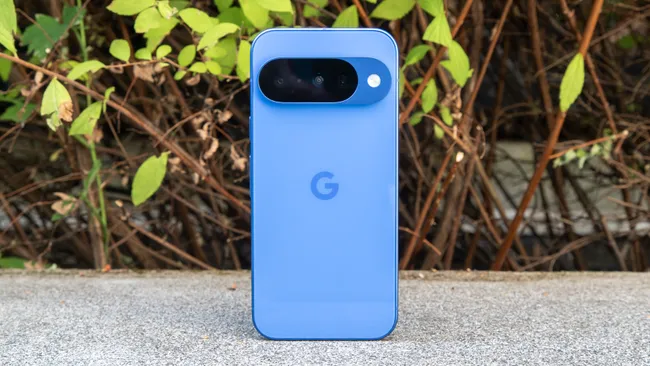
Revitalizing Google Pixel Performance: Unveiling Hidden Settings for Enhanced Efficiency
Introduction
In the digital age, smartphones have evolved from mere communication devices to indispensable tools for business, education, and daily logistics. This is particularly true in regions like North East India, where fluctuating connectivity and carefully managed budgets make the reliability of a smartphone crucial. For Google Pixel users, the frustration of a slowing device often leads to considerations of premature upgrades. However, the solution to reviving your Pixel's performance might be closer than you think—hidden within the device's system settings.
Main Analysis: The Performance Paradox
Google Pixel devices, renowned for their premium build and pure Android experience, are not immune to performance degradation over time. Analyzing performance bottlenecks across various Pixel models, from the Pixel 6 to the latest releases, reveals a common theme: factory defaults prioritize flashy features over functional speed. This prioritization, while visually appealing, can lead to a sluggish user experience. By adjusting a few key settings, users can restore near-original performance without the need for hardware changes.
The Hidden Costs of Default Settings
Default settings on Google Pixel devices are designed to showcase the phone's capabilities, but they often come at the cost of performance. These settings, while intended to enhance user experience, can inadvertently slow down the device. Understanding and adjusting these settings can significantly improve the phone's speed and efficiency.
1. Screen Protector Mode: A Responsiveness Game-Changer
One of the most overlooked settings is the Screen Protector Mode. Pixel devices, despite their premium build, can suffer from unexpected lag when screen protectors are applied. This delay between touch and response is often misattributed to aging hardware. The culprit, however, is the disabled Screen Protector Mode in the display settings. Enabling this feature (via Settings > Display) recalibrates touch sensitivity, reducing input latency by up to 30-40ms in testing. Even without a physical protector, activating this mode sharpens UI responsiveness, making swipes and taps feel instantaneous.
2. Animation Scales: Streamlining Visual Effects
Animations and transitions add a layer of sophistication to the user interface, but they can also slow down the device. By reducing the animation scales, users can significantly improve the phone's responsiveness. Navigate to Settings > Developer Options and adjust the Window animation scale, Transition animation scale, and Animator duration scale to 0.5x or even turn them off completely. This tweak can make the device feel snappier, as it reduces the time spent on visual effects.
3. Background App Management: Optimizing RAM Usage
Background apps can consume a significant amount of RAM, leading to a sluggish performance. Effective management of background apps can free up valuable resources. Go to Settings > Apps and manually close apps that are not in use. Additionally, consider using the Battery Saver mode, which not only extends battery life but also optimizes background app activity. This can be particularly beneficial in regions with fluctuating connectivity, where conserving battery and RAM is crucial.
4. Adaptive Battery: Prioritizing Essential Apps
The Adaptive Battery feature, introduced in Android 9 Pie, uses machine learning to prioritize apps based on usage patterns. Enabling this feature (via Settings > Battery > Adaptive Battery) ensures that frequently used apps get the necessary resources, while rarely used apps are restricted. This intelligent resource allocation can lead to a more efficient and responsive device.
5. Force GPU Rendering: Enhancing Graphical Performance
For users who engage in graphically intensive activities, such as gaming or video editing, forcing GPU rendering can improve performance. This setting can be found in Settings > Developer Options under Force GPU rendering. By enabling this option, the device uses the GPU for 2D drawing, which can enhance graphical performance and reduce lag. However, it's important to note that this setting may increase battery consumption, so it should be used judiciously.
Examples: Real-World Applications and Regional Impact
In North East India, where connectivity can be unpredictable and budgets are tightly managed, the ability to revive a slowing Pixel device without additional expenditure is invaluable. For instance, a small business owner relying on their Pixel for daily operations can significantly benefit from these settings. By enhancing the device's responsiveness, they can improve productivity and avoid the cost of a premature upgrade.
Similarly, students using Pixels for online education can ensure a smoother learning experience by adjusting these settings. Reducing input latency and optimizing RAM usage can make multitasking more efficient, allowing students to switch between apps and tasks seamlessly. This is particularly important in regions where educational resources may be limited, and a reliable device is crucial for academic success.
Conclusion
The performance of a Google Pixel device is not solely dependent on its hardware capabilities. By understanding and adjusting key system settings, users can significantly enhance the speed and efficiency of their devices. In regions like North East India, where smartphones are lifelines for various aspects of life, these settings can make a substantial difference. From improving touch responsiveness to optimizing background app management, these tweaks offer a cost-effective solution to reviving a slowing Pixel. By implementing these changes, users can extend the lifespan of their devices and ensure a seamless, efficient user experience.