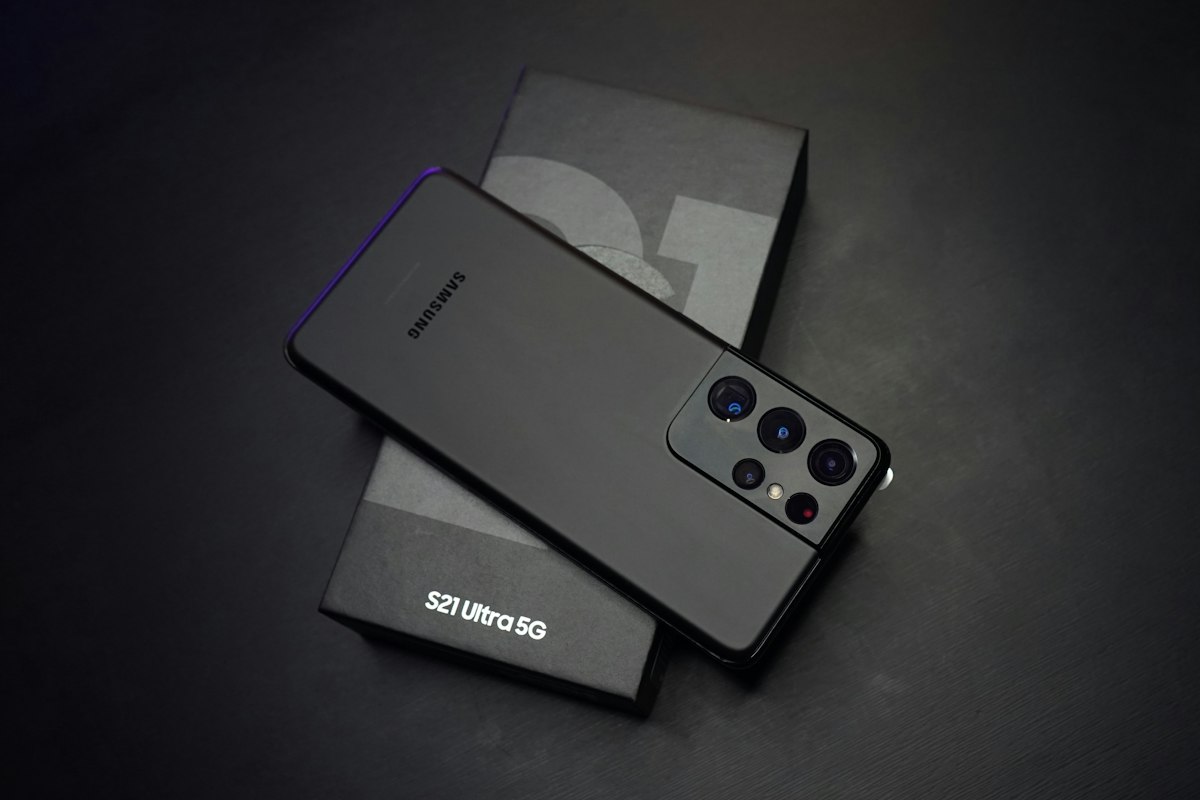
Maximizing Battery Life on Your Samsung Phone: A Guide for North East India
In the fast-paced world we live in, a smartphone's battery life is crucial. If you own a Samsung phone, this guide offers practical tips to enhance your device's battery efficiency without compromising on its features. These tips are particularly relevant for Samsung flagships like the Galaxy S25 Ultra, Galaxy Z Fold 7, and Z Flip 7, which are popular in North East India and across India.
1. Embrace Dark Mode
Dark mode can significantly extend your Samsung phone's battery life. Samsung phones with AMOLED displays can control individual pixels, so when you use dark themes or wallpapers, the pixels that remain black won't consume power. To enable dark mode, go to Settings > Display and choose the Dark option.
2. Activate Adaptive Brightness
Adaptive Brightness, which adjusts the screen brightness based on your environment, is a useful feature for optimizing battery usage. While it may not always be accurate, Samsung's ambient light sensor has improved over the years, making it a reliable choice for most users. To enable Adaptive Brightness, go to Settings > Display and toggle on the feature.
3. Identify and Manage Power-Draining Apps
Many preinstalled apps on Samsung phones consume battery power, even when not in use. Identify these apps and either uninstall or disable them to save battery life. Common examples include the Samsung Smart TV app, OneDrive, and Facebook. To uninstall an app, tap and hold the app icon, then choose Uninstall.
4. Monitor Power-Draining Apps
Samsung allows users to identify apps that consume excessive power due to factors like location, 5G connectivity, and background usage. By turning off these power-hungry apps, you can minimize non-essential battery usage. To do this, go to Settings > Battery and device care > Battery > Background usage limits and choose the apps you want to turn off.
5. Optimize Performance Profile
Samsung offers a Performance profile feature that adjusts the phone's performance based on your usage patterns. For average users, choosing the Light profile is ideal for maximizing battery life. To change the Performance profile, go to Settings > Device care > Performance profile and select Light.
6. Manage Battery in Low Power Situations
In case your phone's battery level drops below 15% and you're still a few hours away from charging, consider turning on Power Saving, disabling data roaming, turning off location services, and switching off Always-On Display (AOD). These steps can help conserve battery until you can recharge your phone.
By implementing these tips, you can make the most of your Samsung phone's battery life, ensuring that it lasts longer throughout the day. These tips are particularly useful for those living in North East India, where consistent access to power might be a challenge.