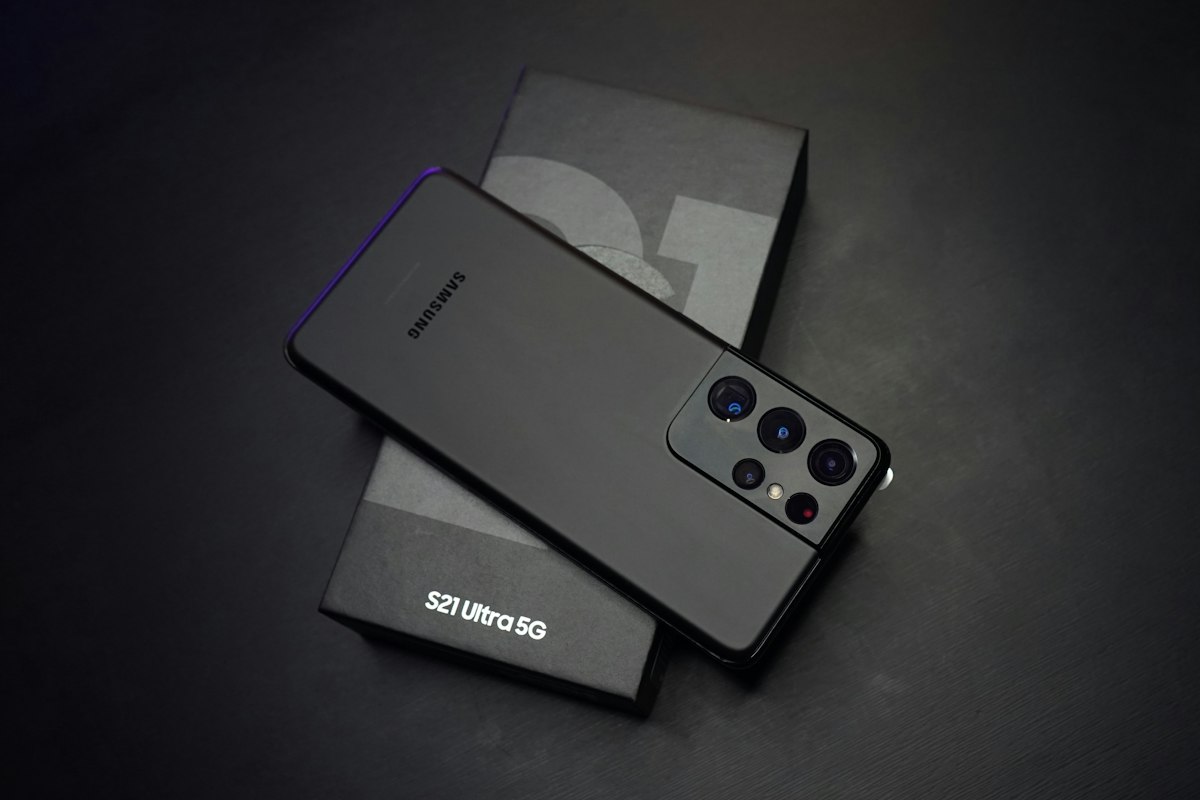
Recording Phone Calls: A Handy Feature for North East India
In today's fast-paced world, remembering every detail of a conversation can be challenging. Recording phone calls can help mitigate this issue, providing a reliable means to recall important information. Samsung, a leading smartphone manufacturer, offers a built-in call-recording function on its devices, allowing users to record calls without the need for third-party applications. This article aims to guide North East India residents on how to use this feature on their Samsung Galaxy phones.
Understanding the Legalities
It is essential to understand that the call-recording feature is subject to regional and carrier restrictions. While Samsung offers this feature, it is only accessible in regions where it is legally permissible. In India, for instance, the One UI Phone app records calls without the recipient's consent, but European countries and certain US states require all parties to consent to the recording.
Recording Mobile Calls on a Samsung Galaxy Phone
To record a call on your Samsung Galaxy phone, follow these steps:
- Make an active call.
- Tap the 'Record call' icon, usually located above the call menu or within the three-dot menu in the upper-right corner.
- A red dot will indicate the active call recording status and time. The 'Record call' icon will turn green-colored.
- Disconnect the call or tap the same button or menu to stop call recording.
- The system saves the recording to the internal storage, and you'll receive a notification.
- Swipe down from the top or upper-left corner to open the Notification Center. Tap the 'Call recorded' notification to listen to the recording.
Recording Calls Using Google Voice
If you prefer using Google Voice for making or receiving calls, you can still record calls. Here's how:
- Open the Google Voice app.
- Select the Hamburger menu in the upper-left corner and go to Settings.
- Turn on 'Incoming call options'.
- When you answer a call on your Google Voice number, open the keypad and tap '4' to start recording.
- All participants hear an announcement that the call recording has started.
- Tap '4' to stop recording.
- You'll find the voice clip in the Voicemail tab.
Automating Call Recording
Samsung also offers an option to automate call recording. This feature records every incoming and outgoing call on your phone. To enable it:
- Launch the Samsung Phone app and go to the Keypad menu.
- Tap the three-dot menu at the top and open Settings.
- Open the Record calls menu.
- Turn on the 'Auto record calls' toggle.
- The default option automatically records all calls (including unknown numbers) on your smartphone.
- You can also change it to record calls from specific contacts or unsaved phone numbers.
Finding and Sharing Recorded Calls
Once you have recorded a call, you can find it within your phone settings and share it with others.
Recording Instant Messaging App Calls
While you can record calls on your Samsung Galaxy device, instant messaging apps like WhatsApp, Telegram, or Messenger use their own dialers and do not offer call recording. If you receive calls from these apps, you must use a dedicated call recorder device to save conversations.
Using Third-Party Apps for Call Recording
Samsung's built-in call-recording feature is a straightforward option for recording calls. However, third-party call recording apps are available on the Play Store. These apps utilize accessibility APIs to record calls without obtaining consent from all parties involved, which is illegal in various parts of the world. Google has announced a policy change to prevent third-party call-recording apps from using accessibility APIs, but workarounds exist depending on your OS version and location.
Looking Forward
As technology advances, the ways we communicate continue to evolve. Understanding how to record phone calls on your Samsung Galaxy phone can provide peace of mind and ensure important conversations are never forgotten. However, it is crucial to remember that the legality of recording calls varies, and obtaining consent is essential to avoid potential legal issues.